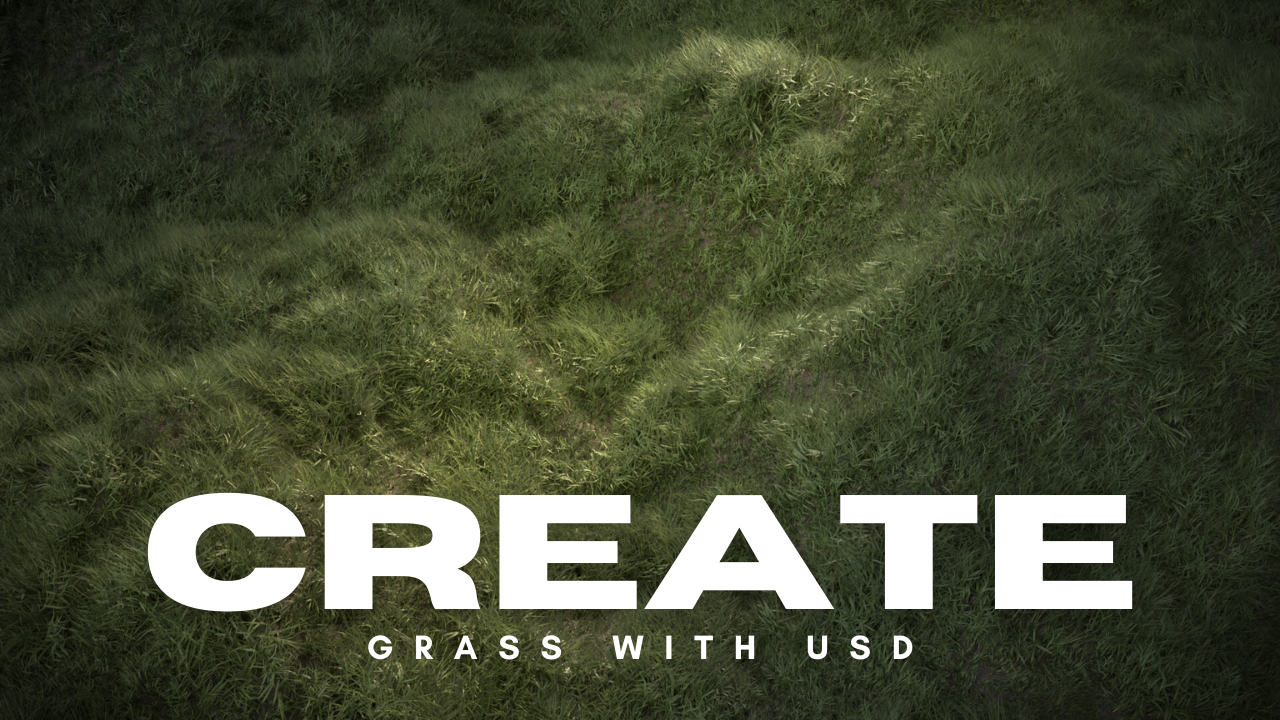
Grass Field Usd
Over the past few months, I’ve been doing a bit of research on industry workflows/trends and there are two topics that kept grabbing my attention. Houdini and USD. So of course the logical progression was to create a personal project using both! But what to make? After a flurry of awful ideas, I figured that grass seemed to be the perfect candidate. I could use Houdini to generate the terrain and scatter the geometry, use USD to pass all that data along to Katana, and finally get those sweet renders out using Renderman. So I have my subject and tools lined up, now it’s time to build the USD plugins and get to work. Easy right? Well what followed was two months of stumbling through forums and online resources to iron out all of the wrinkles that came with this project. All in all I learned plenty and I’m excited to pass some of that on to the public!

Gathering Reference
Truly the key to a great final image. The famous quote “Good artists copy, but great artists steal” seems to be rather abrasive at first glance but it’s the credo we all should live by. See what works and make it your own!
Some of my favorite places to look for reference are Google Images, Pinterest and Artstation. But you can’t beat going outside and taking your own photos.


That being said, I was inspired by several artists on Artstation and they set the bar for what I wanted to accomplish. Down in the resources below, I posted links to their portfolios. Check them out!
Texture Photoshoot
I debated on whether or not I was going to use pre-made assets from a resource such as Megascans or if I would completely make everything from scratch. I decided it would be a good exercise to go out and take the photos myself and create a single texture atlas from these photos.
This allowed me to optimize my lookdev workflow and only require a single material for all variations of grass.

Not a glamorous setup but it worked out. All I used was a manila folder to stop any light bleed from creeping in, and a few sheets of white paper to make the tedious process of cutting out the blades as easy as possible. I used my poor, aging Iphone SE to take the photos. Old phone aside, the texture quality holds up surprisingly well.


I made sure to take pictures of single blades for the actual modeling and full stalks to really understand how grass grew in nature. The common mistake in making grass is having individual blades grow straight up from the ground. They actually grow in stalks or clumps.
Modeling in Maya
After I had the texture atlas at an acceptable point. I went into Maya and used this as my modeling blueprint. I decided to use physical geometry as opposed to flat cards. I did this so I wouldn’t have to worry about over draw and also to give the blades more of a 3-dimensional shape. Cards are great for real-time but since that wasn’t my goal, I figured I could spare the extra polygons.


Since I modeled directly from the texture atlas, I could planar project and use this as as my diffuse map. This made the lookdev process almost too easy.
Natural Scattering in Houdini
Now onto the fun stuff. Digging into that node graph. It’s a very simple setup. Basically I have three point cloud setups that represent low grass, medium grass, and high grass. Each of these randomly switch between 2 variations. All of the scale and density is driven by perlin noise and the rotation is completely random.

I’ll try and clearly describe my node graph from the top down. The image will be an overview and the text directly under will be a walk through of the process.

- Each grass variation is imported one by one
- They are then scaled down to match the units in Houdini
- Each grass type is assigned it’s own unique group. This will come in handy later when I need to isolate the geometry.
- I create an attribute that will later be passed to Katana for the shading process. I will go into more detail on this in the Katana section.
- I create an attribute wrangle node that specifies the location of the grass in my scene. I will also explain this in more detail in the USD section.
- All of the Grass is merged together. I have to do this because of the way the USD instancer node functions. The instancer node basically assigns a set of attributes to the geometry to allow the point instancer to work properly. If you assign this node to the individual objects one by one, it breaks the instancing and won’t cycle through your objects. Only one will be instanced.
- To isolate the grass into separate clumps again, I use a blast node that deletes anything that isn’t in the spcified group.

- The A and B variations are plugged into a switch node. This is the Geo connected to the copy stamp. This node also has an expression that randomly switches between the variations to be scattered.
- I use an attribute noise to control the density of the scatter points, this allows me to use noise to give the grass a natural growth pattern and also use ramps to have more control of the final look.
- I use a duplicate of the same noise to control the scale of the grass. This way, the more dense areas will also have taller grass stalks.
- I use a VOP Network for random rotation.
- These attributes are passed to the points on the terrain
- The copy stamp scatters the grass to these points

I did the same exact process for all three grass types, just adjusting noise to add variation. Once that’s done, I merge them together and export the result to a grass.usd file.
Camera Culling
After initial tests with some truly horrendous render times, I quickly realized that the density of grass required for this scene would call for some serious optimization techniques. I talked to the FX lead at my studio on different ideas and he showed me this handy little technique.


This setup takes the terrain and creates a group of all points inside of the camera frustum. Anything that is not included in this group, is deleted. This new geometry is then used to scatter points onto. This eliminates the overhead of processing grass that can’t be seen.
The resulting mesh is then exported to a terrain.usd file to be used later.
Utilizing USD
USD is one of those industry buzzwords that everyone seems to be talking about and for good reason. It’s awesome! It allowed me to export full scene data directly from Houdini into Katana. Instances and all, it just works. Now there are plenty more reasons to adopt this format. You can send full light rigs or even materials between applications without rebuilding any node networks or putting any additional work into it. On top of that, multiple departments can simultaneously and non-destructively work with the same set of data.
Here’s my final shot.usd file open in Pixar’s USD View.

For the grass field, the only real USD features I used was passing instancing along to Katana and composing my scene.
What do I mean by “composing my scene?” Well USD allows you to layer files together. Think of stacking layers in Photoshop. This is especially great for studios. Imagine each department working on their specific jobs and stacking everything together into one single shot.usd file.

With this layering functionality, I could append my grass and terrain into one single file that could be passed into Katana. Notice that they are both added under the scene_ALL folder.

A USD file is basically a text document that holds a list of attributes and the scene location is no exception. If you’re using Houdini to compose your scenes, you can simply add an attribute wrangle and change an object’s location in the scene.
Bringing it all Together in Katana
My Katana node setup is about as simple as it gets. My scene comes in, I set a few attributes, light the scene, create and assign some materials and finally render it all out to disk.

I use a switch node to change my high res scene to a proxy version. This is especially helpful for lighting, when I need quick feedback for light direction/intensity and don’t want to calculate thousands on instances.

Another workflow I adopted was assigning materials based on attributes.
In Houdini, I assign a string attribute called Material. And the value of this material is foliage.

I then use an expression to create a collection. This collection consists of anything in my scene that has the material attribute of foliage. This allows me to go back and add extra plants if needed. As long as I add this attribute to the new plants, the material will be assigned automatically.

All I need to do now is tell the material assign node to apply my grass material to the grass collection I created.

The lighting in the scene is also very simple. A directional light for my Key, a disk light for my bounce, and an hdri for my fill. The values are pretty high so that I can get that bright, “magical” disney lighting style.

After tweaking a few render settings, I just render it out, do some minor compositing in Nuke and we’re good to go!
Final Thoughts and Resources
All in all I learned a lot during this project. I highly encourage anyone reading this to get comfortable with procedural software packages and read up on USD. These seem to be the direction our industry is heading so it’s best to stay on top of these trends.
USD Resources
- SideFX Explains USD
- Pixar USD Website
- USD Based Pipeline
- USD at Animal Logic Academy
Houdini Resources
- Camera View Clipping
- Building USD for Houdini Linux
- Building USD for Houdini Windows
- Animal Logic Houdini USD
Katana Resources
- Powerful Look Development in Katana
- Geometry Tags in Katana
- Intraware Australia
Artstation Inspiration
- Iwo Pilc
- Romeo Costa
- Greg Zdunek
- Mickael Riciotti
- Mikel Barron Bilbao